
Users, SIP & Web Phone
Twilio adds a Twilio phone section to each PBX user (Connect ▸ Users) and introduces SIP domains that host the user credentials.
SIP Domains
Manage domains under Connect ▸ Twilio ▸ SIP Domains. A SIP domain is required for SIP phone registration; the web phone works through the Twilio Voice SDK and does not strictly need a SIP domain, but a domain is the standard place to hold per-user credentials.
| Field | Description |
|---|---|
| Subdomain | Custom subdomain — mycompany becomes mycompany.sip.twilio.com. |
| Friendly name | Human-readable label. |
| Application | TwiML app that handles voice for the domain; auto-created if left empty. |
| SIP Registration | Allow SIP phones to register against the domain. |
| Delete Protection | Guard against accidental deletion. |
| Edge domains | Computed edge-specific SIP hostnames. |
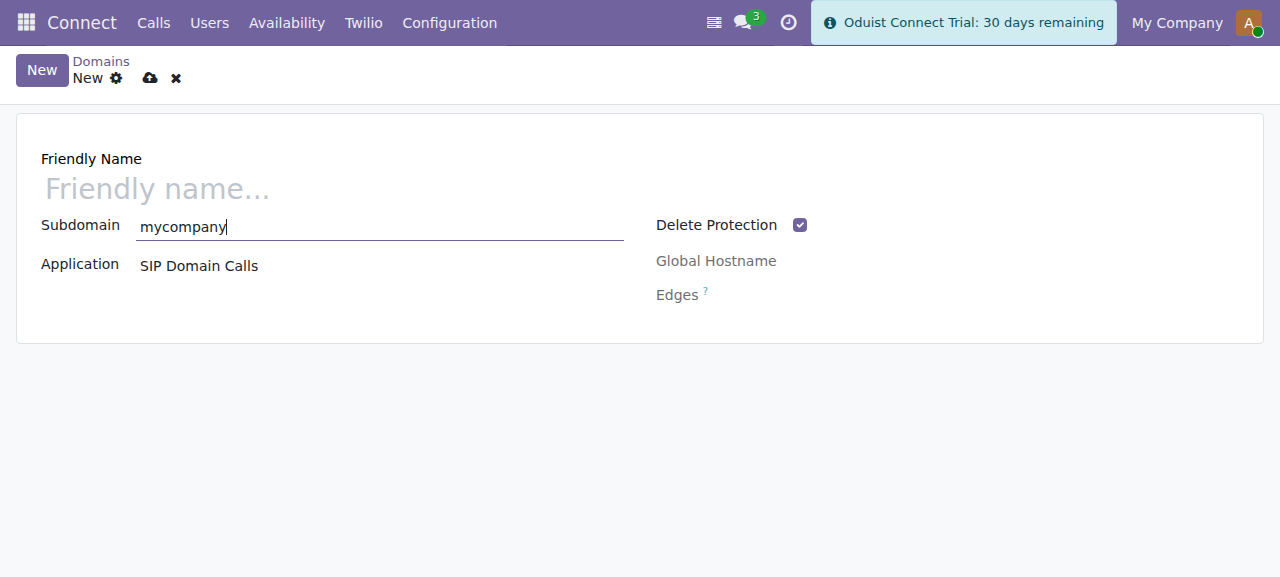
Creating a SIP domain — Connect provisions the Twilio domain, a credential list and per-user credentials automatically.
When you create a domain, Connect automatically:
- Creates the SIP domain on Twilio.
- Creates a credential list.
- Adds SIP credentials for every existing PBX user.
Existing Twilio domains and their credentials can be imported by name during sync rather than recreated.
Per-user telephony setup
Editing a PBX user, the Twilio integration adds these fields.
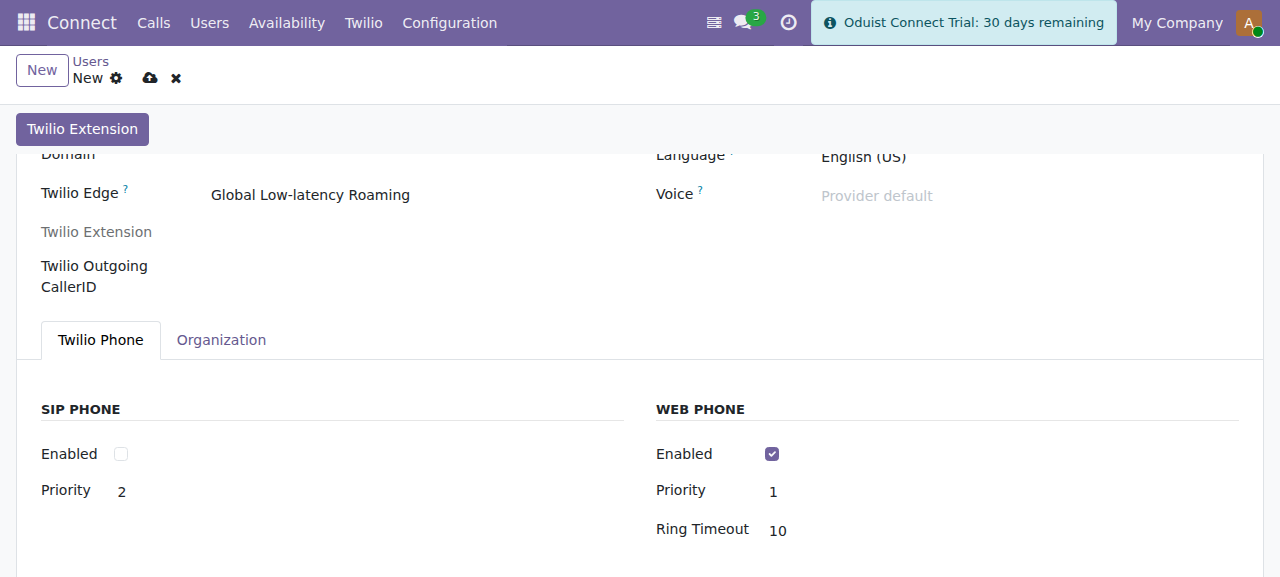
The Twilio Phone tab on a PBX user: SIP phone and web phone (Twilio Client), each with its own enable switch, ring priority and timeout.
Extension
Give every PBX user an extension: open the user and press the Twilio Extension button, then enter the number (100, 101, ...). Nothing assigns one automatically — creating a user does not create an extension.
The extension is what colleagues dial to reach the user, and it is the caller ID the user's own calls present — the number that shows on the callee's phone and in the call history. A user without one falls back to their own outgoing caller ID, then the default outgoing caller ID, and only then to their client identity (ADR-058).
Web phone (Twilio Client)
| Field | Description |
|---|---|
Web Phone Enabled (client_enabled) |
Allow this user to make/receive calls in the browser. Default: on only when Twilio is the sole telephony module installed; enable per user in multi-provider databases. |
Web Phone Priority (client_priority) |
Ring order across channels: 1 = first, 2 = second. |
Web Phone Ring Timeout (client_ring_timeout) |
Seconds to ring before falling through to the next channel. |
SIP phone
| Field | Description |
|---|---|
SIP Phone Enabled (sip_enabled) |
Allow this user to register a hardware/software SIP phone. |
SIP Priority (sip_priority) |
Ring order (1/2). |
SIP Ring Timeout (sip_ring_timeout) |
Seconds to ring the SIP phone. |
SIP credentials
| Field | Description |
|---|---|
| Username | Alphanumeric PBX username, unique. Required only when the SIP phone or web phone is enabled — a user with no Twilio phone may leave it empty (relevant when several providers are co-installed). |
| Domain | SIP domain for this user (connect.twilio.domain). Same conditional requirement as Username. |
| Password | SIP password. Auto-generated with a strong policy (12+ characters). |
SIP URI (connect_uri) |
Computed username@subdomain.sip.twilio.com, or the edge-specific host (username@subdomain.sip.<edge>.twilio.com) when the user's Edge is not Global Low-latency Roaming. |
Automatic credential management
Creating a user with the SIP phone enabled (or enabling it later) automatically creates the matching SIP credential on Twilio — and only the credential; the extension is a separate, manual step (see Extension above). Changing the password updates the credential on Twilio; deleting the user removes it. Existing Twilio credentials are imported rather than duplicated.
Other per-user fields
These sit in the user's User Info and Call Settings groups, not on the Twilio Phone tab:
| Field | Description |
|---|---|
TwiML Application (application) |
Override the domain-level TwiML app for this specific user. |
Outgoing Caller ID (twilio_outgoing_callerid) |
The caller ID this user presents on outbound external calls; falls back to the global default caller ID. |
WhatsApp Sender (whatsapp_sender_id) |
WhatsApp number assigned to this user. |
Edge (twilio_edge) |
Preferred Twilio edge for this user (web phone and edge-specific SIP URI). |
Extension (twilio_exten) |
The user's internal extension — created manually with the Twilio Extension button, never automatically. |
Using the web phone
Open the phone with the handset button in the systray. The dot next to Connect in the header is green when the browser is registered with Twilio, and the extension beside it is your own. Once a call is live the header says so and starts a timer, and the tabs step aside until the call ends.
The phone follows Odoo's own colour scheme: switch the backend to dark mode and the panel goes dark with it. There is no separate setting.
Drag the panel by its header to move it. It cannot be dragged off the screen, and if you make the browser window smaller it comes back inside on its own — the header, and with it the hang-up button, is always reachable.
Three tabs along the bottom:
| Tab | What it holds |
|---|---|
| Keypad | The dial field and keys. Type a name, a number or an extension. |
| Recent | Your calls, newest first, grouped by Today, Yesterday, then by date. |
| Favourites | Speed dial, as a grid. |
Dialling
Press the keys, or just type. The two behave differently on purpose:
- Pressing the keys keeps the keypad on screen and names the number underneath it as soon as it matches a contact or a colleague.
- Typing on your keyboard searches, and the matches take the keypad's place — Colleagues (reached on their extension) above Customers (reached on their number). Press Enter to dial. If nothing matches, the green button still dials exactly what you typed.
What colleagues can see of each other
Any Connect user can look a colleague up by name or extension and dial them. The lookup returns only a name and an extension — SIP usernames, passwords and SIDs stay visible to Connect administrators alone, and a user still cannot open another user's PBX record.
The two buttons flanking the green call button send an SMS or a WhatsApp message to the number instead of calling it.
On a call
The timer and the recording state sit above a grid of controls: Forward, Keypad (to send touch tones — the field shows the tones as you send them), Contact (opens the contact, or creates one if the number is unknown), Mute and Record. Red only ever ends the call.
Forwarding keeps the call on screen: the person you are talking to stays in a strip along the top while you pick who to hand them to, and Back to the call returns without dropping anything.
Picking someone hands the call straight over and drops you out of it — there is no announcement first. Colleagues are reached on their extension and anyone else on their number, exactly as if you had dialled them.
After a call
The panel goes straight back to wherever you were before the call — the keypad, Recent or Favourites — so you can carry on. If you were on Recent, the call you have just finished is already in the list.
Recent
Each row is one call: who it was with, which way it went, what came of it and how long it lasted. Click the row to call back, the photo to open the call record, the star to keep the number.
A call that never connected says so in red, and says it from your side — the same call reads differently to the two people on it:
| What happened | You were called | You called |
|---|---|---|
| Nobody picked up | Missed | No answer |
| The other end pressed Decline | Declined | Busy |
| The call was hung up before it connected | Missed | Cancelled |
| The call could not be placed at all | Failed | Failed |
So Failed now means what it says: something went wrong. A colleague who was busy, or who decided not to take your call, is not a failure and no longer reads as one.
Favourites
Star a call in Recent to keep its number. Starring a colleague keeps the colleague — their name and their photo — not just the extension. The line under the grid tells you which number your outgoing calls present to the other end.
Safari: click the phone before your first call
Safari will not let a web page pick an audio output device until you have interacted with the page. Until you click something, the phone falls back to your default output — which is usually what you want anyway. Opening the phone once after loading Odoo is enough.
Web phone token
The browser softphone requests a JWT from connect.user.get_client_token(),
which is signed with the API Key SID / Secret from settings. If web-phone
users cannot register, verify those two credentials are set and correct.
Alongside the token the call returns your extension and your outgoing caller ID, which is what the header and the favourites footer display.